New Desktop Status
The admin health check screen allows admins to quickly and easily solve gatherer and user related issues that maybe causing issues with data flowing into WorkiQ.
The Gatherer and User health window displays users and gatherers in a simple table allowing the data to be filtered to find key issues relating to:
-
Missing Gatherer Install Files
-
Browsers that are being used and the status for the browser extension has been installed.
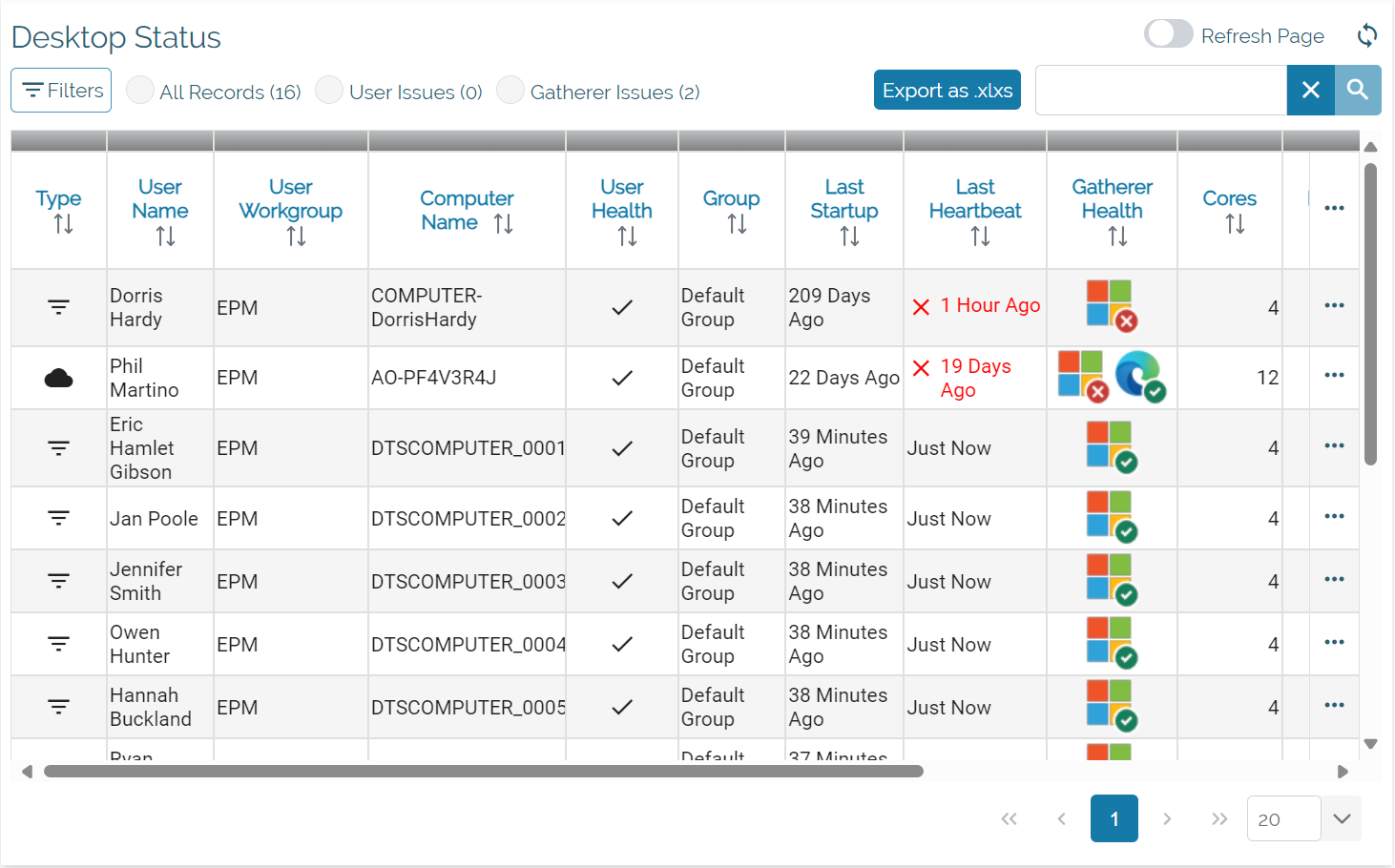
In the Gatherer Health column you will see up to four logos with either a green tick or red x none or some issues. The windows icon represents Gatherer related issues due to install files that maybe missing. The other three potential icons are browser related, these will only be displayed if the browser has been used. Issues relating to the browser will be if the browser extension is installed and collecting URL data.

Addition Column Items
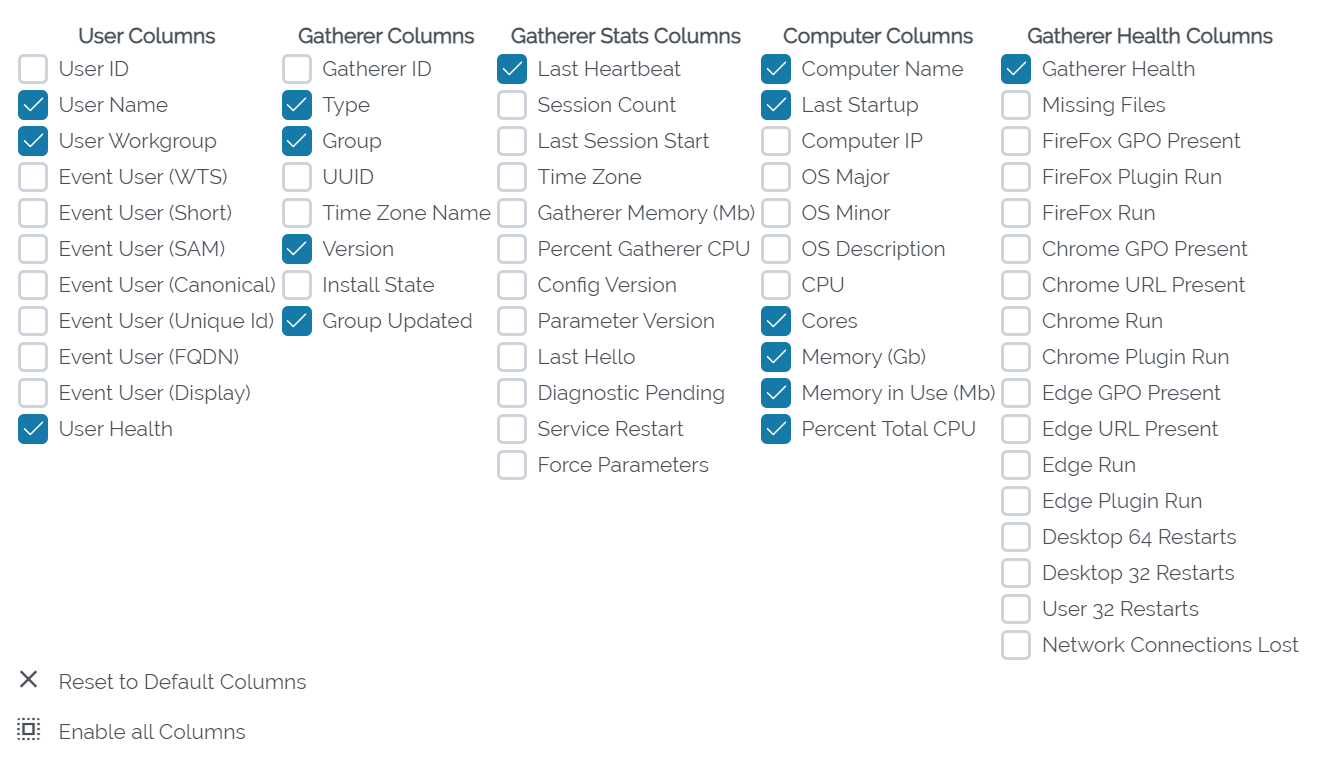
The new Gatherer Health screen gives you a standard set of information that in most situations allow users to solve common issues that can arise from time to time. In some scenarios it could be beneficial to have additional information to help solve other issues.
Clicking on ... the right hand side of the table header will give you a menu of additional items that can be displayed.
If a user wants to go back to the default table options - This can be done by simply clicking on the reset back to default.
Filtering Specific Issues
To help make sense of the data users can filter common issues related to the Gatherer by selecting specific issues with the user or the gatherer, when clicked the screen will refresh with the specific information.
As standard the Gatherer health screen will only show you monitored users to help direct your efforts to issues you may face around the gatherer. Options are available to view User only issues or gatherer related issues.

Pressing the Filters button opens up further options of surfacing additional users that are unmonitored, have no gatherers assigned or are inactive.

Exporting to Excel
The export feature within the Gatherer screen will export the data based on the current filters you have selected. Clicking the 'Export as.xslx' button will then create a export in excel for you to then use as required.