LDAP integration
Overview
This section describes how to set up Web Authentication for your platform using LDAP Authentication.
|
LDAP can be used to access Microsoft Active Directory as well. The default user and group configuration values are suitable for use with Active Directory. |
The Lightweight Directory Access Protocol (LDAP) is an open, vendor-neutral, industry standard application protocol for accessing and maintaining distributed directory information services over an Internet Protocol (IP) network. Directory services play an important role in developing intranet and Internet applications by allowing the sharing of information about users, systems, networks, services, and applications throughout the network.
Enable LDAP Authentication
Navigate to Platform>Web Authentication. The LDAP Authentication window is displayed.
Click Enable LDAP Authentication.
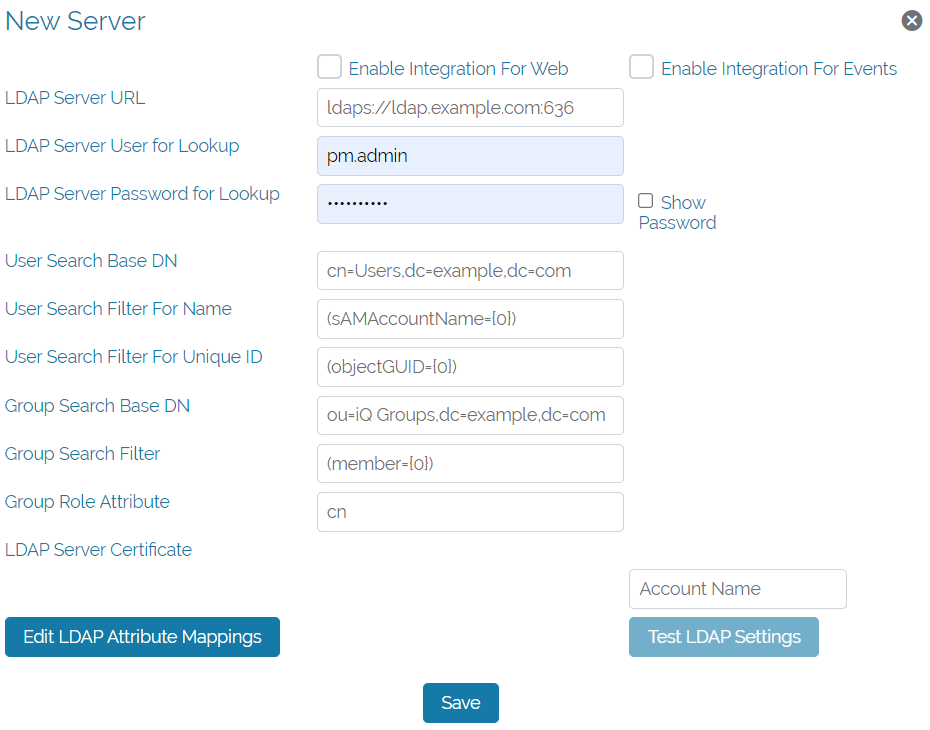
Enter parameters for the LDAP server as defined in the following table.
|
Parameter |
Description |
|
LDAP Server URL |
The host and port of the LDAP server in URL format. Use ldap:// for non-secure connections and ldaps:// for secure connections |
|
LDAP Server User for Lookup |
Optional LDAP user to authenticate to the LDAP server when searching for users. |
|
LDAP Server Password for Lookup |
If the optional LDAP user is entered, the password is required. |
|
LDAP User Search Base DN |
The Base DN in the LDAP directory to search for users. |
|
LDAP Group Search Filter |
A filter expression to use when searching for users. The {0} value is replaced with the web id entered by the user at the login page. |
| LDAP Group Search Attribute | The LDAP attribute to retrieve for the name of the group. |
Click Save.
Install a Keystore
|
When using ldaps://, if the LDAP server does not have a TLS certificate from a well-known Certificate Authority, it is necessary to construct a Java keystore containing the LDAP certificate and install the keystore into the web platform. |
-
Obtain the LDAP TLS certificate in PEM format.
-
Use the Java keytool command to import the certificate into a Java keystore. The keystore must be named cacerts.jks and have the password changeit.
-
Respond with yes to the trust question from keytool. See the example text below:
-
keytool -import -file ldap.crt -alias example.com -keystore cacerts.jks
-
Enter keystore password:
-
Re-enter new password:
-
… Certificate details shown here …
-
Trust this certificate? [no]: yes
-
Copy the created keystore to /opt/activeops/data/web/config.
-
Restart the activeops-web server with systemctl.
Edit LDAP Attribute Mappings
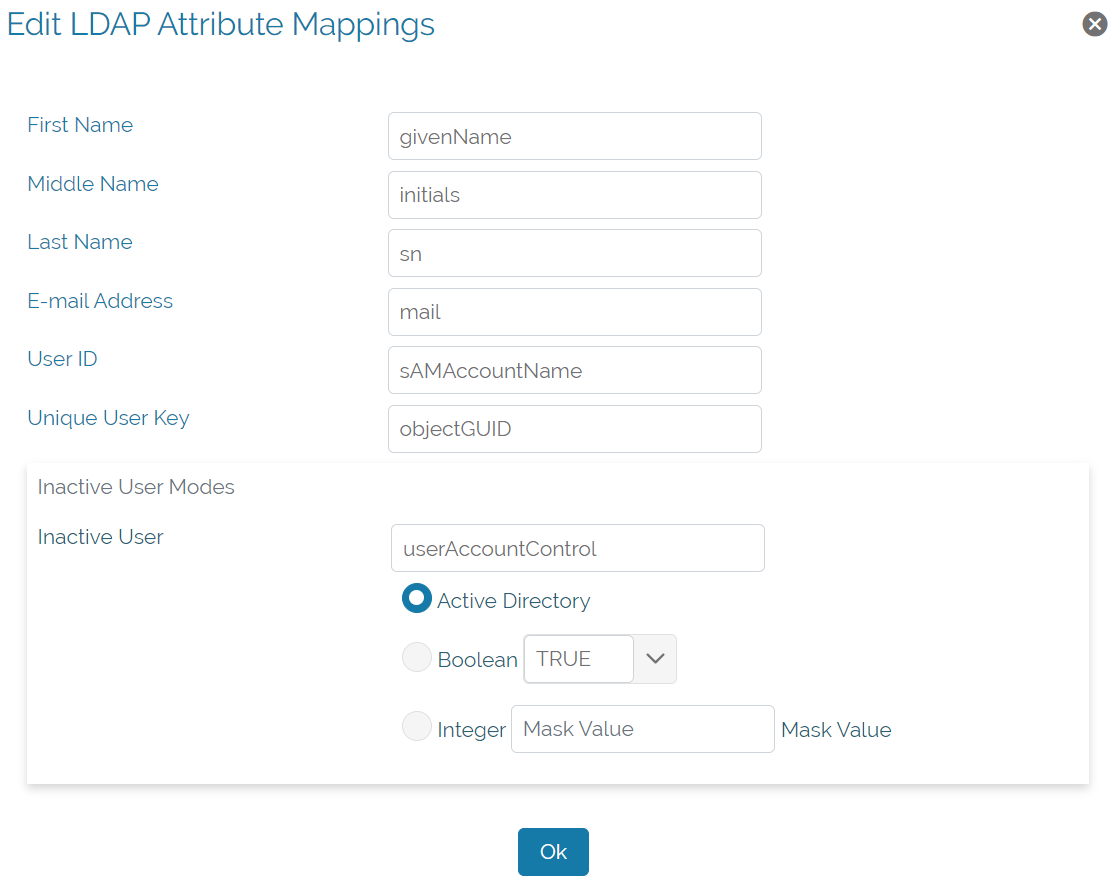
LDAP (Lightweight Directory Access Protocol) uses attribute mappings to correlate data between systems. Here are some common attribute mappings:
- **First Name**: This is typically mapped to the `givenName` attribute in LDAP.
- **Middle Name**: This is usually mapped to the `initials` attribute.
- **Last Name**: This is commonly mapped to the `sn` (surname) attribute.
- **E-mail Address**: This is often mapped to the `mail` attribute.
- **User ID**: This is generally mapped to the `sAMAccountName` attribute.
- **Unique User Key**: This is typically mapped to the `objectGUID` attribute.
Inactive User Modes
Inactive users are often determined by the `userAccountControl` attribute. This attribute can have different modes, represented as Boolean or Integer values.
For example, in Active Directory:
- A Boolean value might indicate whether the user is active (`true`) or inactive (`false`).
- An Integer value might represent a specific status or mode of the user account, often referred to as a "Mask Value".
Remember, the exact mappings can vary depending on the specific LDAP implementation and configuration.