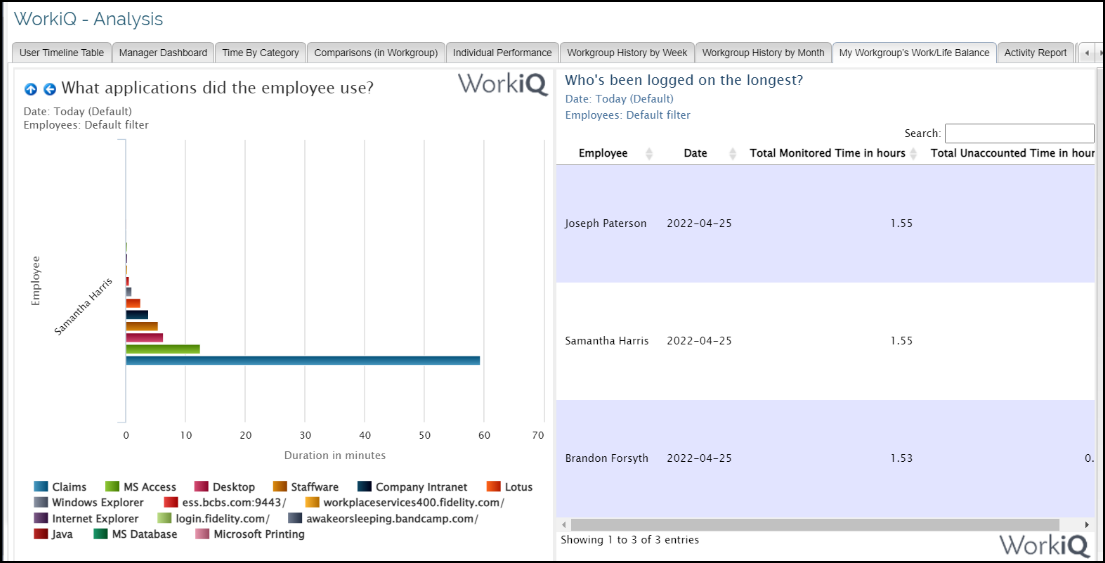
My Workgroups Work/Life Balance
-
Navigate to WorkiQ>Analysis.
-
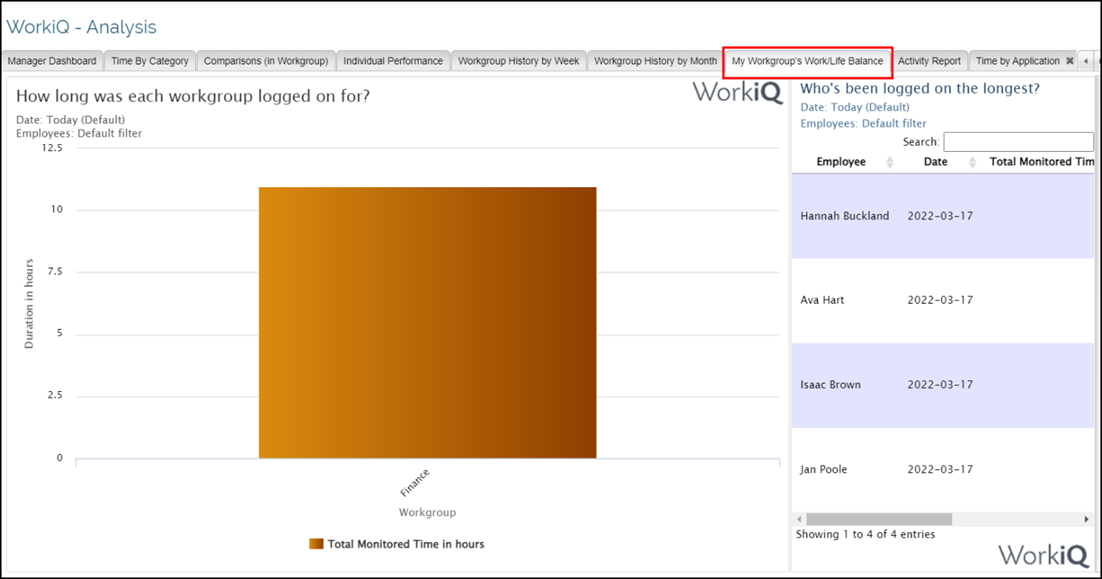
Click on My Workgroup’s Work/Life Balance to display the Work/Life Balance of the Workgroup.
-
My Workgroup’s Work/Life Balance has 2 Views:
-
How long was each workgroup logged on for?
-
Who’s been logged on the longest?
-
-
The first view - How long was each workgroup logged on Chart has 4 Drill Downs:
-
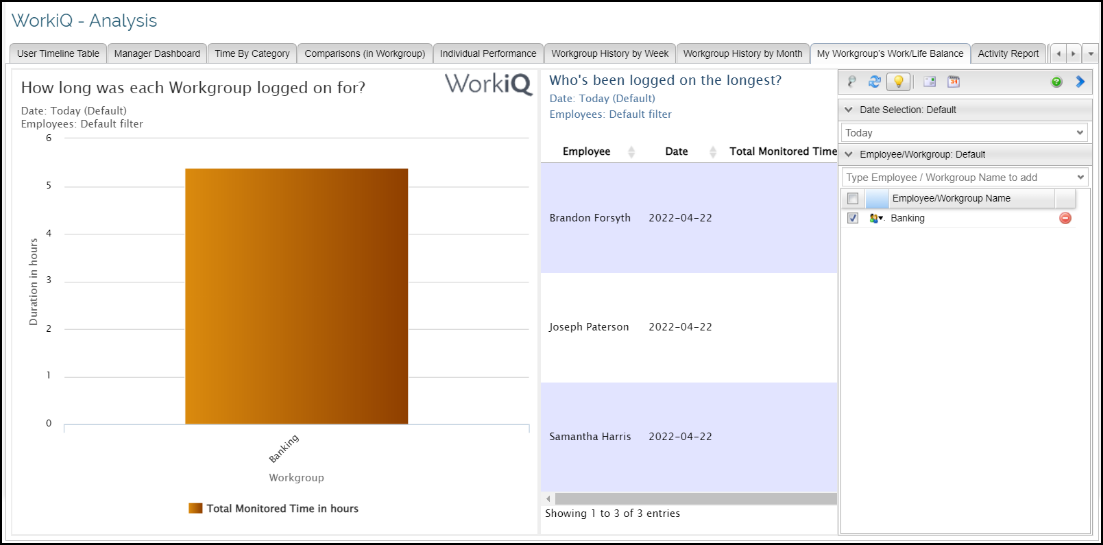
Drill down 1 - How long was my workgroup logged on for?
This chart gives data about the total time the workgroup was logged on for based on the date filter chosen.
-
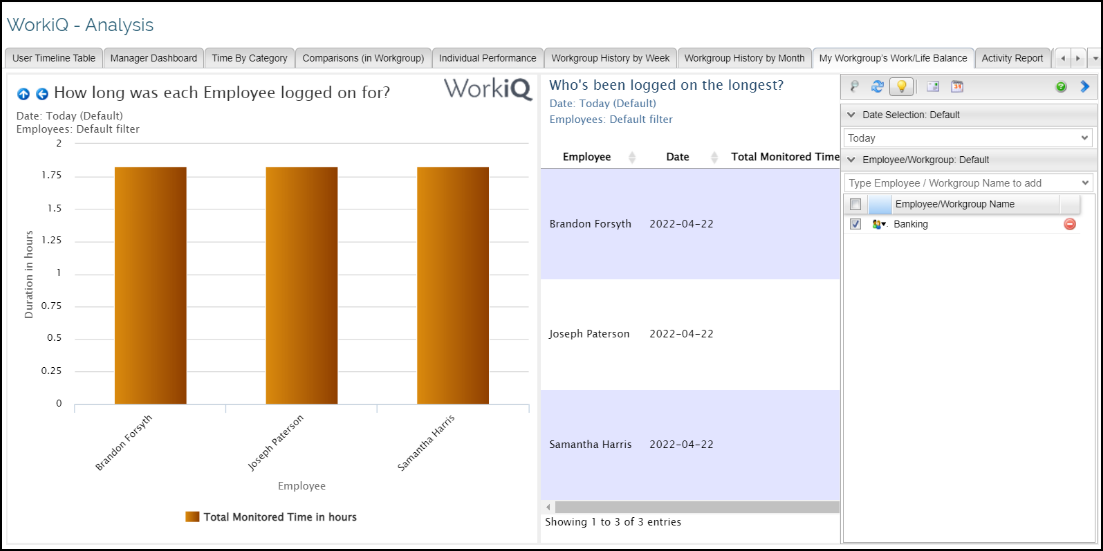
Drill Down 2 - How long was each Employee logged on for?
-
Drill down 3 - How was my Workgroup member’s work life balance?
-
Drill down 4 - What applications did the employee use?
The chart displays the total time in hours each employee in the workgroup selected has been logged on for
The chart displays how based on Category Type the Employee selected on the chart, spent time including the minimum expected breaktime compared to their unaccounted time.
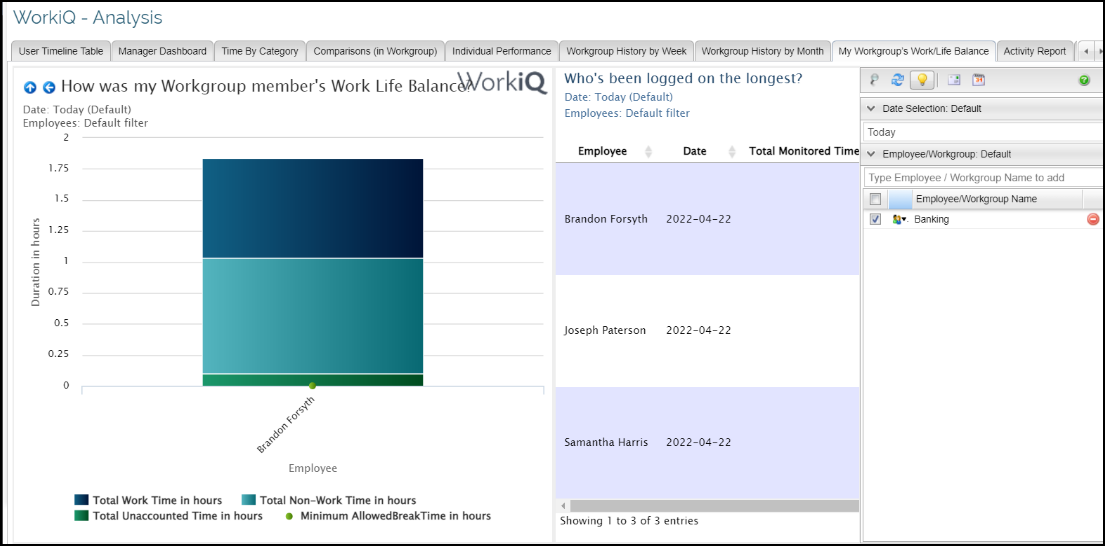
The chart displays the applications used by the employee based on the Category selected.