Manager Dashboard Overview
Click WorkiQ>Analysis to display the following screen. With this, the WorkiQ Managers and the users for whom the specific role is assigned to access the WorkiQ>Analysis would be able to view, create, email and schedule reports.
|
The Manager Dashboard tab is NOT the default tab, it is only the left most tab. |
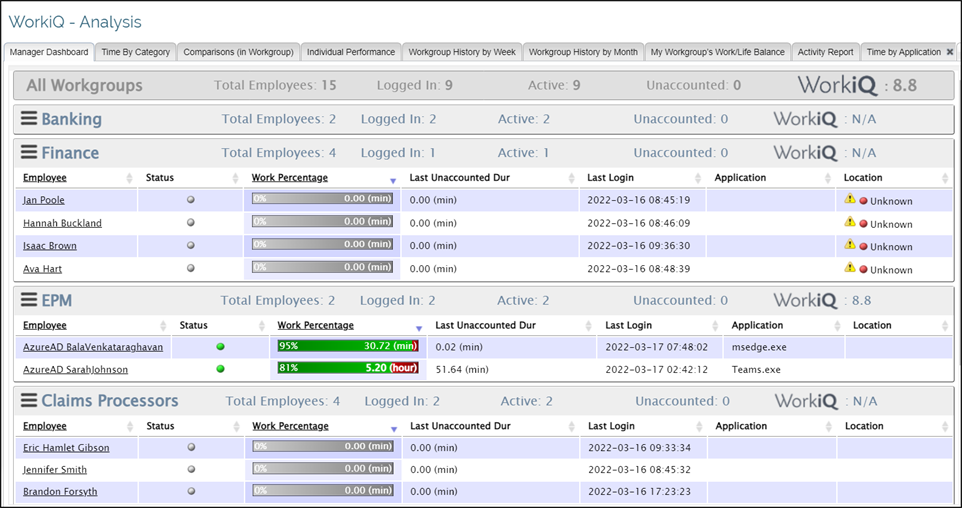
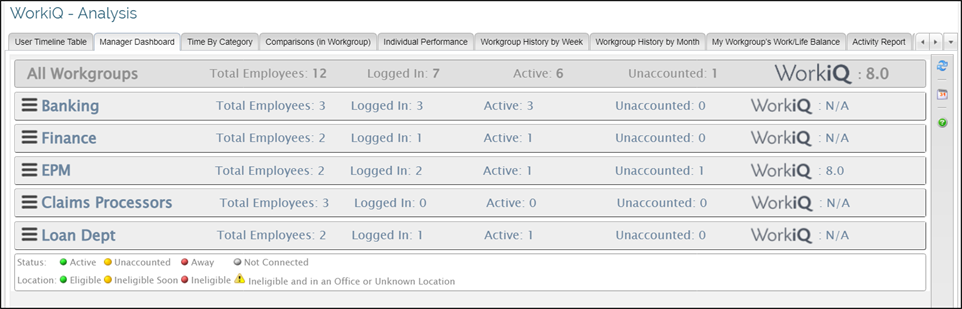
To more easily see all the available Workgroups , you can collapse the Employee list in a workgroup by clicking on the Workgroup name. In the following figure the Employee list on the Workgroup which was visible has been collapsed by clicking on the Workgroup Name to view all the Workgroups.
|
The User’s default dashboard is determined by their roles assigned in User Management>Roles. Depending on the roles assigned to the user, one or more Dashboards can be configured to appear by default. |
All of the WorkiQ>Analysis features can be accessed by clicking the tabs described in the following sections. Choices are:
-
Create New Tab Name
